
Those little ¶ marks suddenly appear everywhere and your email looks like a coding manual. You did not turn them on, and now you cannot figure out how to turn them off. This guide gives you every method — quick toggle, keyboard shortcut, and settings fix — for every version of Outlook.
What Are Paragraph Symbols in Outlook?
Paragraph symbols are formatting marks that Outlook displays to show invisible characters in your email. They are not part of the actual email content — recipients never see them.
They show up when Outlook’s “Show/Hide” feature gets switched on, either by accident or from a setting carried over from a template or copied text.
What the ¶ Symbol Actually Means
The ¶ symbol is called a pilcrow or paragraph mark. It marks the end of every paragraph in your email.
It belongs to a family of formatting indicators that Outlook can display:
- ¶ — Paragraph mark (end of a paragraph)
- · — Space mark (each space between words)
- → — Tab mark (tab characters)
- ↵ — Line break (soft return, Shift + Enter)
- § — Section sign (sometimes confused with ¶)
Seeing all of these at once usually means “Show Formatting Marks” was toggled on.
Why Are They Showing Up?
Paragraph marks appear for a few common reasons. Knowing the cause helps you choose the right fix:
- You accidentally pressed Ctrl + Shift + 8 or clicked the ¶ button
- You pasted text from a Word document or website that carried formatting marks
- A previous email template had formatting marks enabled
- Outlook’s Editor Options are set to always display formatting marks
- Someone forwarded you an email composed with formatting marks turned on
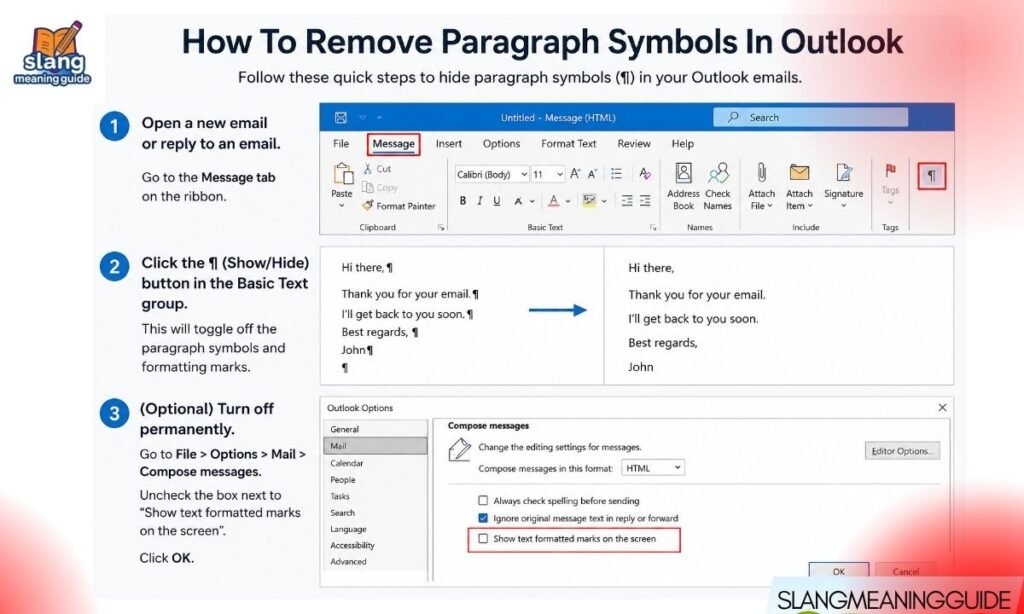
The Fastest Fix: Use the ¶ Button
The quickest way to remove paragraph symbols is a single click on the toolbar. Here is how:
- Open a new email or reply window in Outlook
- Click the Format Text tab in the ribbon at the top
- Look for the Paragraph section in the ribbon
- Click the ¶ button once to toggle the marks off
That is it. The marks disappear immediately. If they come back next time you open a new email, use the settings method below to make the change permanent.
Keyboard Shortcut to Toggle Paragraph Marks
If you prefer not to use the ribbon, Outlook has a keyboard shortcut that does the same thing:
- Windows: Press Ctrl + Shift + 8 or Ctrl + Shift + *
- The shortcut works as a toggle — press it once to hide marks, press it again to show them
Keep in mind:
- This shortcut only works while the email composer window is active
- It does not change your default settings permanently
- You may need to press it each time you open a new email if the setting is saved to always-show
Where Is the ¶ Button? (Classic vs Simplified Ribbon)
The ¶ button is not always visible. Its location depends on which ribbon layout you are using:
Classic Ribbon:
- Go to Format Text tab
- The ¶ button appears directly in the Paragraph section
- It is visible without any extra clicks
Simplified Ribbon (the compact version):
- The Paragraph section may be collapsed
- Click the three-dot overflow menu (…) on the right side of the ribbon
- Look for Paragraph options or the ¶ symbol in the expanded menu
If you cannot find it:
- Right-click the ribbon and select Customize the Ribbon
- Make sure Format Text is enabled
- Switch back to Classic Ribbon via View > Ribbon Layout if needed
Fix It Permanently: Outlook Settings Method
The toolbar toggle turns off paragraph marks for one session. To stop them from appearing every time, change the Editor Options:
- Click File in the top-left corner
- Select Options
- Click Mail in the left panel
- Click Editor Options
- Select Display from the left menu
- Under Always show these formatting marks on the screen, uncheck:
- Paragraph marks
- Tab characters
- Spaces
- Any other marks you want to hide
- Click OK to save
After this change, paragraph symbols will not appear in any new email you compose.
How To Remove Paragraph Symbols When Replying
The reply window in Outlook sometimes behaves differently from a new email window. Here is what to do:
- Open the reply window fully by clicking Pop Out (the arrow icon at the top right of the reply box)
- Once in the full-screen composer, the Format Text tab becomes available
- Click the ¶ button in the Paragraph section to toggle marks off
- Alternatively, use Ctrl + Shift + 8 directly in the reply window
In the compact inline reply box, the Format Text tab is often hidden — always pop out first.
Remove Paragraph Symbols in Outlook for Mac
The process on Mac is slightly different. Here is how to handle it:
- Open a new email
- Click the Format menu in the top menu bar
- Look for Show Formatting Marks or a similar toggle
- Click it to turn marks off
Keyboard shortcut on Mac:
- Try Command + 8 or Command + Shift + 8 depending on your Outlook version
If those shortcuts do not work:
- Go to Outlook Preferences > Composing > Editor Options > Display
- Uncheck the formatting marks you want to hide
Remove Paragraph Symbols in Outlook.com
Outlook.com (the browser version) has fewer formatting controls than the desktop app. Here is what you can do:
- Open a new message in Outlook.com
- Look for the Format tab or text formatting toolbar
- The ¶ button may appear as a small formatting icon in the toolbar
- Click it to toggle marks off
If you cannot find the button:
- Click the three-dot menu (…) at the bottom of the compose window
- Look for Show/Hide Formatting Marks or similar
- Note: Outlook.com does not have a deep settings path for this — the toggle is the main option
Paragraph Marks From Pasted Content
Pasting text from Word, Google Docs, or a website can import formatting marks directly into your email. Here is how to clean that up:
Option 1: Paste as plain text
- Use Ctrl + Shift + V or right-click and choose Paste as Plain Text
- This removes all formatting including marks
Option 2: Clear formatting after pasting
- Select the pasted text
- Go to Format Text > Clear Formatting (the eraser icon)
- This strips formatting marks and resets the text style
While Option 3: Use Paste Special
- Press Ctrl + Alt + V
- Choose Unformatted Text and click OK
What Temporary Toggle vs Permanent Setting Means
Most guides show you the toggle button but skip this important point:
| Method | Effect | Persists? |
| ¶ button click | Hides marks in current email only | No |
| Ctrl + Shift + 8 | Hides marks in current session | No |
| Editor Options > Display | Hides marks in all future emails | Yes |
If paragraph marks keep coming back every time you open Outlook, the Editor Options method is the only one that fixes it permanently.
Why Recipients Do Not See Paragraph Marks
This is a common source of confusion — paragraph marks are not part of your email’s content. They are display tools for the writer, not formatting codes sent to recipients.
When you send the email:
- The ¶ marks do not appear in the received message
- They are Outlook-side editing aids only
- Hiding them is purely for your own composing comfort
- They do not affect font, layout, or any element your recipient sees
When You Should Keep Paragraph Marks Visible
There are situations where keeping paragraph marks on actually helps:
Editing long emails — marks show exactly where paragraphs start and end
Fixing extra blank lines — marks reveal hidden empty paragraphs causing spacing issues
Cleaning up pasted text — marks expose double spaces, rogue tabs, and line breaks
Troubleshooting formatting problems — marks make invisible characters visible for diagnosis
Template editing — marks help you see structure when building reusable email formats
Turn them on when you need them. Turn them off when you do not. The toggle and the keyboard shortcut make it easy to switch between both.
Troubleshooting: Marks Still Showing After the Fix
If paragraph marks are still visible after trying the steps above, check these things:
Ribbon tab is wrong — make sure you are on Format Text, not the Message tab
Simplified ribbon hiding the button — switch to Classic Ribbon under View > Ribbon Layout
Keyboard shortcut not working — the compose window must be the active window when you press the shortcut
Settings not saved — re-open Editor Options and confirm the unchecked boxes were saved
Outlook needs a restart — close and reopen Outlook after changing Editor Options
Pasted content overriding the setting — clear formatting after pasting (see the pasting section above)
Frequently Asked Questions
How do I remove paragraph symbols in Outlook?
Click the ¶ button in the Format Text tab under the Paragraph section, or press Ctrl + Shift + 8 to toggle them off instantly.
Why do paragraph marks keep coming back in Outlook?
The toolbar toggle is temporary — go to File > Options > Mail > Editor Options > Display and uncheck paragraph marks to make the change permanent.
Where is the ¶ button in the Outlook ribbon?
It sits in the Paragraph section of the Format Text tab — if you cannot see it, you may be on the simplified ribbon and need to click the three-dot overflow menu.
Does turning off paragraph marks affect what recipients see?
No — paragraph marks are display-only editing aids and are never visible to anyone who receives your email.
Can I remove paragraph symbols in Outlook.com?
Yes — use the ¶ toggle button in the compose toolbar or the three-dot menu at the bottom of the compose window, though settings are more limited than in the desktop app.
Conclusion
Paragraph symbols in Outlook are easy to remove once you know where to look. Use the ¶ button for a quick one-time fix, the keyboard shortcut when speed matters, and the Editor Options path when you want them gone for good. Keep them on only when you need them — which is more often useful than most people realize.